
6.4 Tasks
Clicking on Tasks under Tools displays a list of tasks, with an “Add Task” button at the top to create new tasks.
The list of Task section allows users to see and manage all tasks within the system. It provides a list of existing tasks, along with key details such as:
- Task Subject
- Allocated For (Department, Project, or Purpose)
- Allocated To (User or Role responsible for the task)
- Due Date
Expanding Task Options
- Clicking on the plus (+) button next to a task expands action buttons, allowing users to manage the task.
Available Actions:
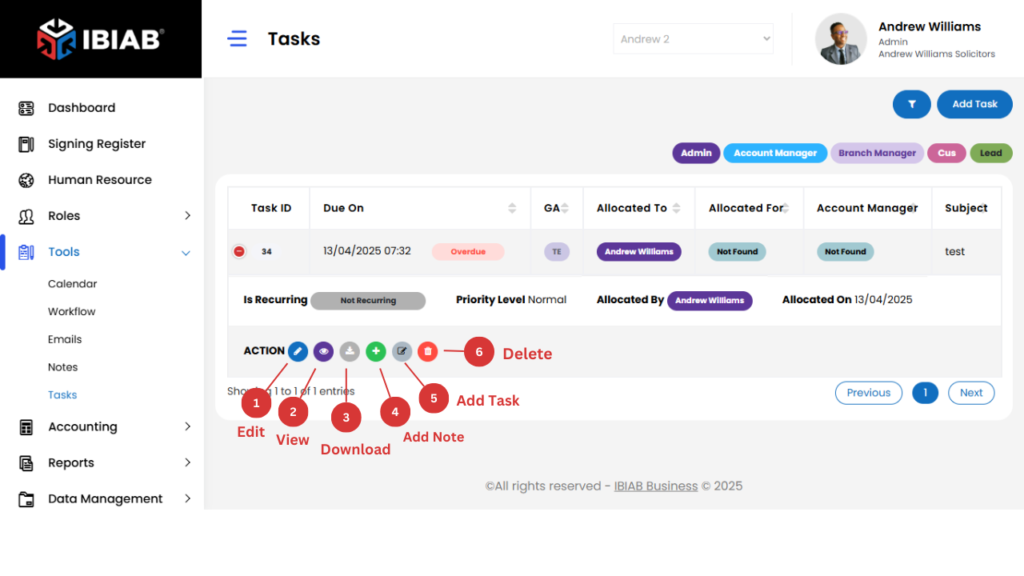
- Edit – Modify task details such as subject, description, due date, priority, or status.
- View – Open the task details to review the assigned information.
- Download – Save the task details as a document for offline access.
- Add More Tasks – Assign additional tasks related to the current one.
- Add Note – Attach notes to the task for additional context or updates.
- Delete – Permanently remove the task from the system.
📌 Tip: Use the Edit option to update the task status as it progresses to keep track of completed and pending tasks efficiently.
Add Task – Assign a task to users.
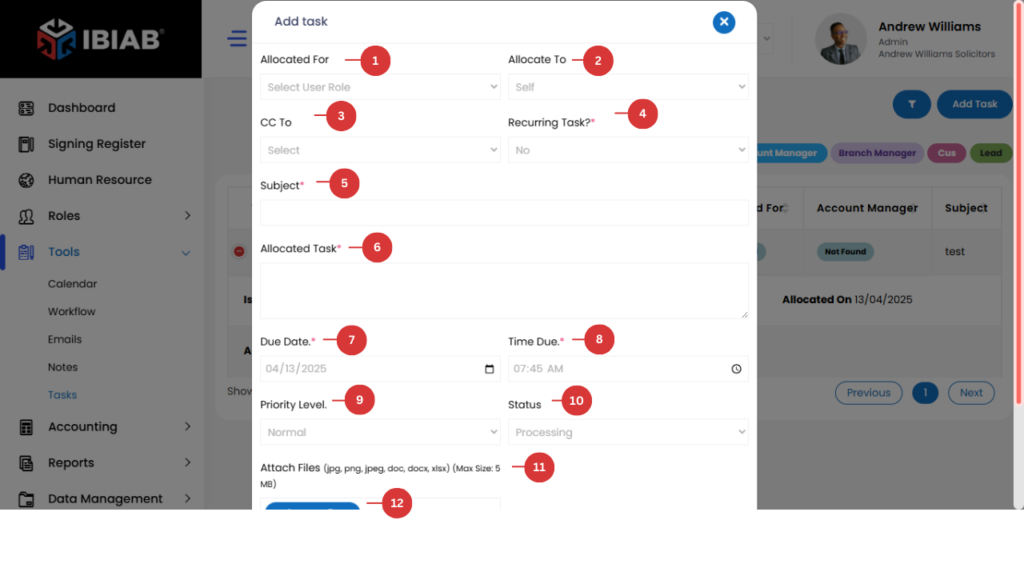
The Add Task feature allows users to create and assign tasks to different users within the system. When clicking on the “Add Task” button, a task creation form will pop up.
Fields in the Add Task Form:
- Allocated For – Select the specific user role for which the task is being created.
- Allocated To – Choose the specific user responsible for completing the task.
- CC To – If required, add other users who should receive updates about the task.
- Recurring (Daily, Weekly..) – the task will be automatically repeated at set intervals.
- Subject* – Enter a brief title describing the task.
- Allocated Task (Description)* – Provide a detailed explanation of the task.
- Due Date* – Set the deadline by which the task should be completed.
- Time Due* – Specify the exact time the task is due.
- Priority Level – Select a priority:
- Low
- Medium
- High
- Urgent
- Status – Choose the status of the task:
- Pending
- In Progress
- Completed
- On Hold
- Attach Files – Upload any necessary documents, images, or files related to the task.
- save
How to Add a Task:
- Click on “Add Task”.
- Fill in the required details (marked with an asterisk *).
- Ensure the correct user/role is assigned and set the due date/time.
- If the task is recurring, select Yes and define the frequency.
- Click “Save” to create the task.
📌 Tip: Assign tasks with clear descriptions and due dates to improve efficiency and task tracking.