
2.6.General Settings
Common Section
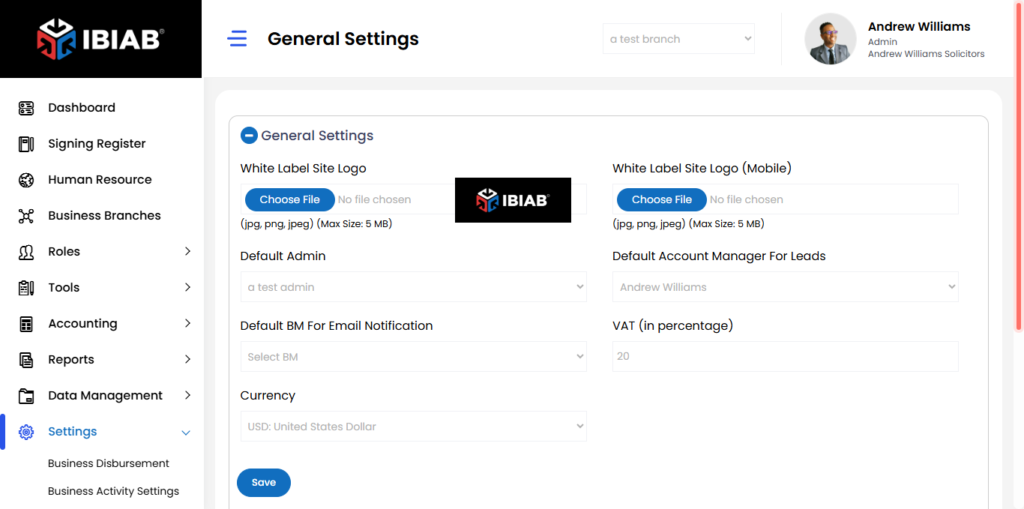
This section includes general settings for white labeling, admin defaults, and PDF customization:
- Configure key settings to personalize and streamline your system.
- White Label Site Logo – Upload a custom logo for branding.
- White Label Site Logo (Mobile) – Upload a logo specifically for mobile view.
- Default Admin – Set the default administrator for system management.
- Default Account Manager for Leads – Assign an account manager for incoming leads.
- Default BM for Email Notification – Set the default Business Manager for email alerts.
- VAT (in percentage) – Define the default VAT rate for transactions.
- Currency – Select the preferred currency for business operations.
Manage Labels Settings
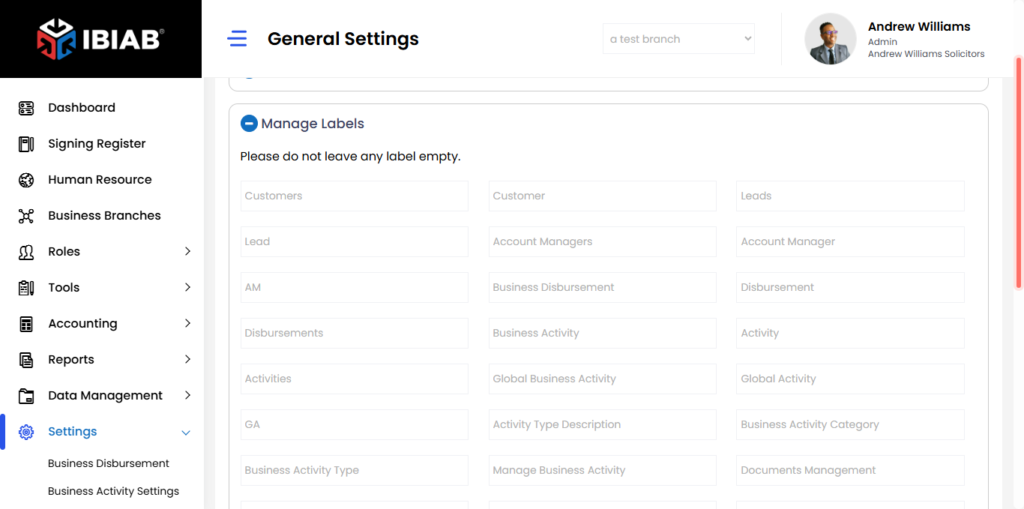
This section allows users to rename labels across the system UI to match their business terminology. The following fields can be customized:
- Customers → Customer
- Leads → Lead
- Account Managers → Account Manager
- AM
- Business Development Manager → BD Manager
- BD Managers → BD Manager
- BDM
- Business Disbursement → Disbursement
- Business Activity → Activity
- Global Business Activity → Global Activity
- Activity Type Description
- Business Activity Category
- Business Activity Type
- Manage Business Activity
- Default Activity
- Documents Management → Send Documents
- Customer Status
- Bring Forward → BF Exp
- Customers Bills → Customers Bill
- Customer Payments → Customer Payment
📌 Tip: Customizing labels ensures the system aligns with your business-specific terminology for better usability.
PDF Document Settings
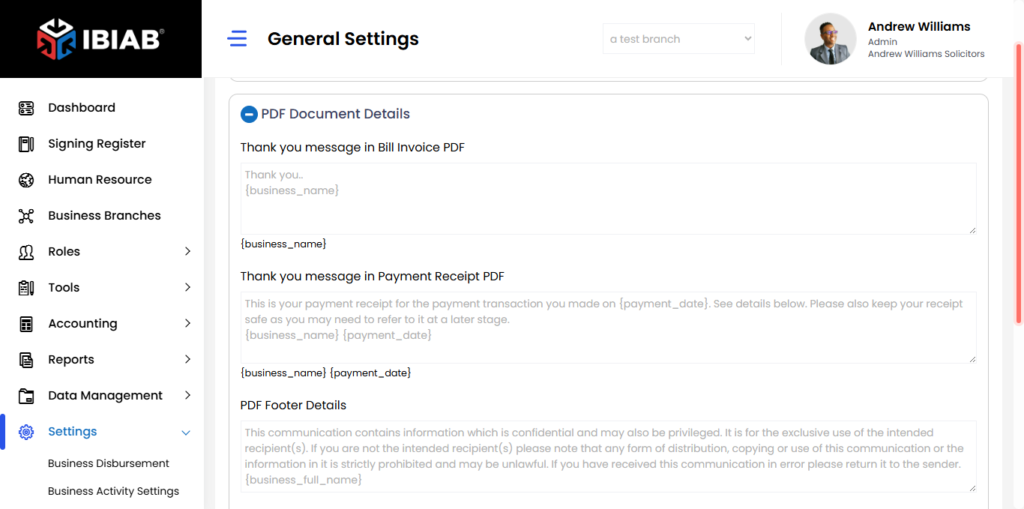
- Bill Invoice PDF
- Add a thank-you message that appears on customer invoices.
- Use {business_name} to dynamically display your business name.
- Add a thank-you message that appears on customer invoices.
- Payment Receipt PDF
- Add a thank-you message to payment receipts.
- Use {business_name} for the business name and {payment_date} for the payment date.
- Add a thank-you message to payment receipts.
- PDF Footer Details
- Customize the footer with dynamic business information.
- Available placeholders:
{business_full_name} – Full business name
{business_short_name} – Short trading name
{business_admin_name} – Business admin’s name
{business_admin_role} – Business admin’s role
{business_email} – Business email address
{business_address} – Business address
{business_fax} – Business fax number
{business_tel} – Business telephone number
{business_website} – Business website
{business_sra} – Special Membership Number (SRA)
{business_ilpa} – Membership Number (ILPA)
{business_vat} – VAT number
- Customize the footer with dynamic business information.
This setup ensures your PDFs are personalized and professional while dynamically pulling relevant business details. 🚀
Reset Password
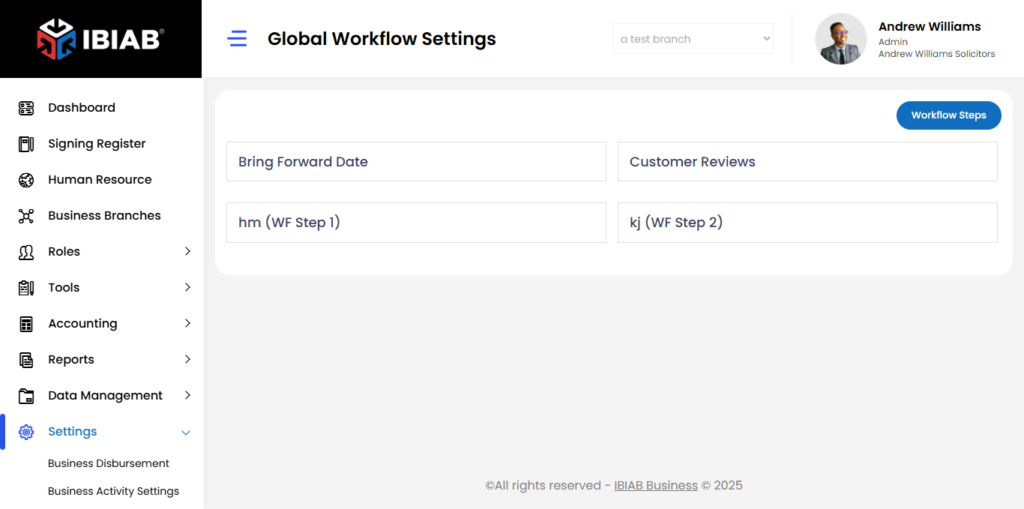
To reset your password, follow these steps:
- Enter Your Email – Make sure your email is correct
- Set a New Password – Choose a strong new password and enter it in the New Password field.
- Confirm Your Password – Re-enter the same password in the Confirm Password field to ensure accuracy.
- Submit- Click the Reset Password button to update your credentials.
Once completed, you’ll be able to log in with your new password! 🚀