
6.1 Calendar
When you click on the Calendar menu under Tools, it will display a list of events in a calendar view. with “Event Venue”, “Delivery Methods”, “Event Categories” , “Add Event” buttons on the top
1. Event Venue Form
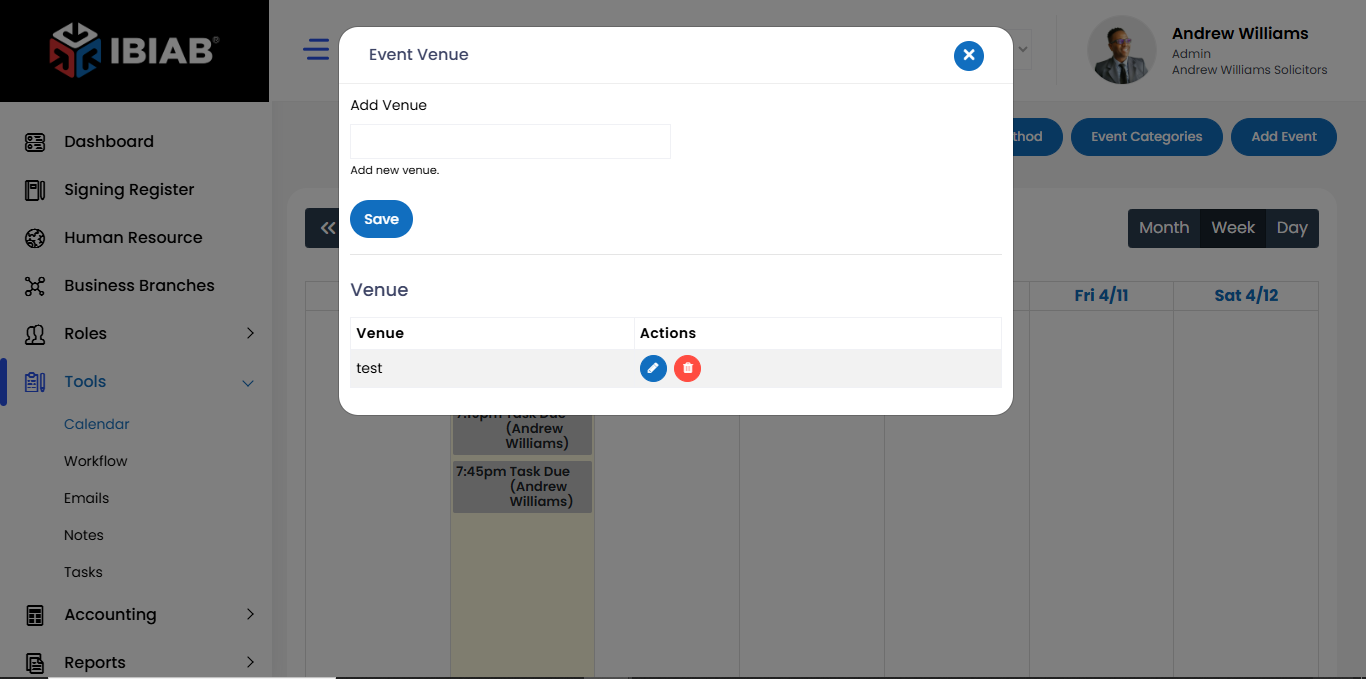
The Event Venue Form allows users to manage different locations where events can take place. This form is used to add, edit, or delete venues in the system.
Fields in the Event Venue Form:
- Venue Name* – Enter the name of the location (e.g., “Main Office,” “Conference Room A”).
📌 Purpose: This form helps businesses manage and select appropriate venues when scheduling events.
2. Delivery Methods Form
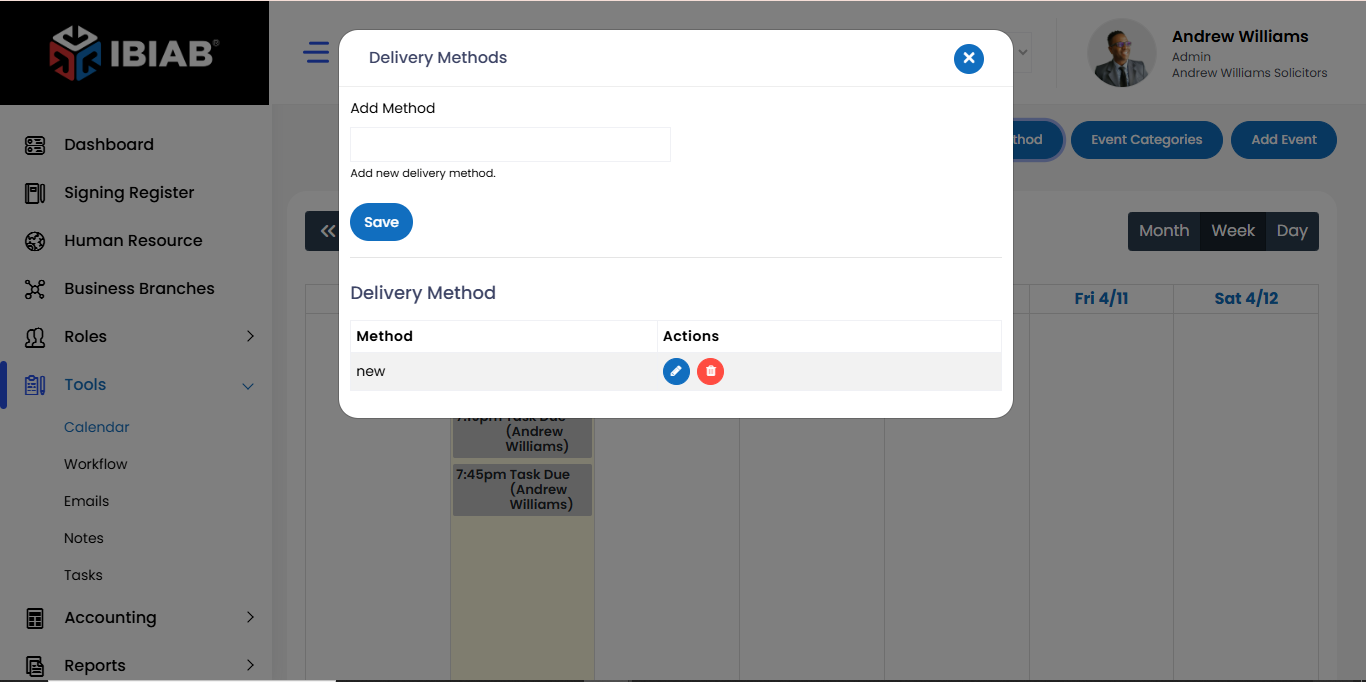
The Delivery Methods Form defines how an event will be conducted. This form allows users to add, modify, or remove delivery options.
Fields in the Delivery Methods Form:
- Method Name* – Enter the delivery method name (e.g., “In-Person Meeting,” “Video Call”).
📌 Purpose: Helps ensure event organizers select the correct mode of delivery when scheduling appointments.
3. Event Categories Form
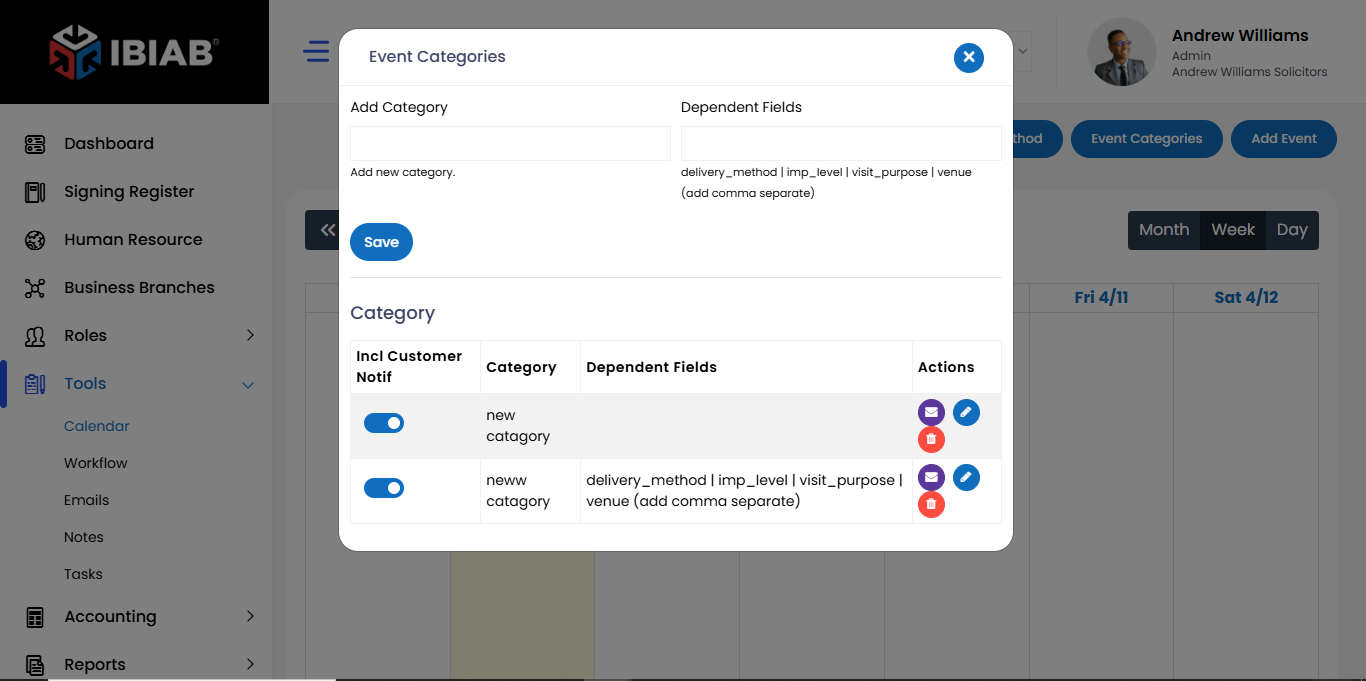
The Event Categories Form is used to define different types of events in the system. It allows users to categorize events based on their purpose and importance.
Fields in the Event Categories Form:
- Category Name* – Enter the event category name (e.g., “Consultation,” “Business Meeting”).
- Dependent Fields (comma-separated) – Specify additional required fields when this category is selected:
- delivery_method – Select applicable delivery methods (e.g., “In-Person, Online Meeting”).
- imp_level (Importance Level) – Define priority levels (e.g., “High, Medium, Low”).
- visit_purpose – Enter reasons for the visit (e.g., “Follow-up, Negotiation”).
- venue – Define possible locations (e.g., “Office, Virtual Meeting Room”).
📌 Purpose: Ensures structured event planning by categorizing appointments based on purpose and required settings.
Toggle on the “Include Customer Notification” column if you want customers to receive an email or SMS update about this action.
4. Add Event
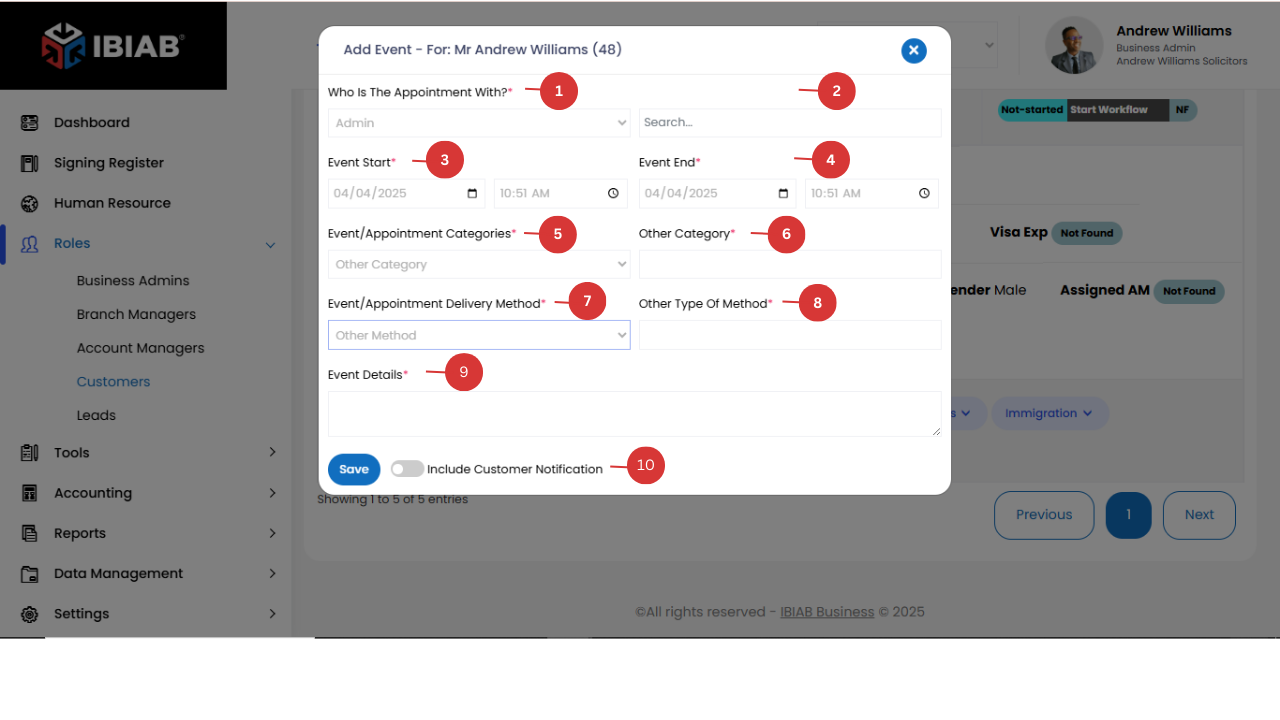
Clicking on “Add Event” opens a form that allows you to schedule a new event or appointment within your business system. The form includes the following fields:
- Who Is the Appointment With? * – A dropdown menu to select the user for the appointment. You can choose a specific user role or manually enter a user’s name.
- User – Select a specific user that you want to add the event too.
- Event Start* – Select the date and time when the event begins.
- Event End* – Select the date and time when the event ends.
📌 Note: The end time must be later than the start time. - Event/Appointment Categories* – Select the category for the event.
If “Other” is selected, an additional field - Other Category* will appear, allowing you to manually enter a custom category.
- Event/Appointment Delivery Method*
- Other type of Method – add type of method
- Event/Appointment Delivery Method* – Choose how the appointment will be conducted (e.g., in-person, phone call, video conference, etc.).
- Toggle on the “Include Customer Notification” if you want customers to receive an email or SMS update about this action.
📌 Tip: Always double-check the date, time, and assigned user before submitting the event to avoid scheduling conflicts.
Features of the Calendar View:
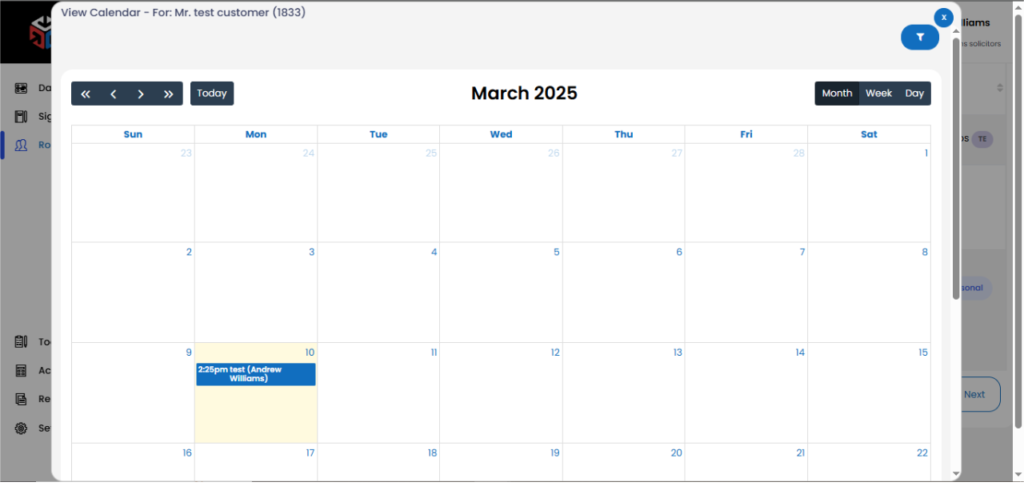
Calendar Display Options
You can switch between different view modes to organize how the data is displayed:
- Month View – Shows all events for the selected month.
- Weekday View – Displays events by weekdays.
- Day View – Displays events by Day
Filtering Events
The calendar allows you to filter events based on specific criteria:
- By Events – Shows only scheduled appointments and events.
- By Tasks – Displays assigned tasks along with deadlines.
- By Bring Forward Dates – Filters important reminders and follow-ups.
- By Month – View events for a selected month.
- By Year – Display events scheduled for an entire year.
📌 Tip: Use the filters to quickly find relevant events and tasks, ensuring better planning and workflow management.