6.3 Notes
When you click on the Notes menu under Tools, a list of notes will be displayed in a table format. At the top, you’ll find the “Add Notes” button, allowing you to quickly add new notes.
The List of Notes section allows users to manage previously added notes.
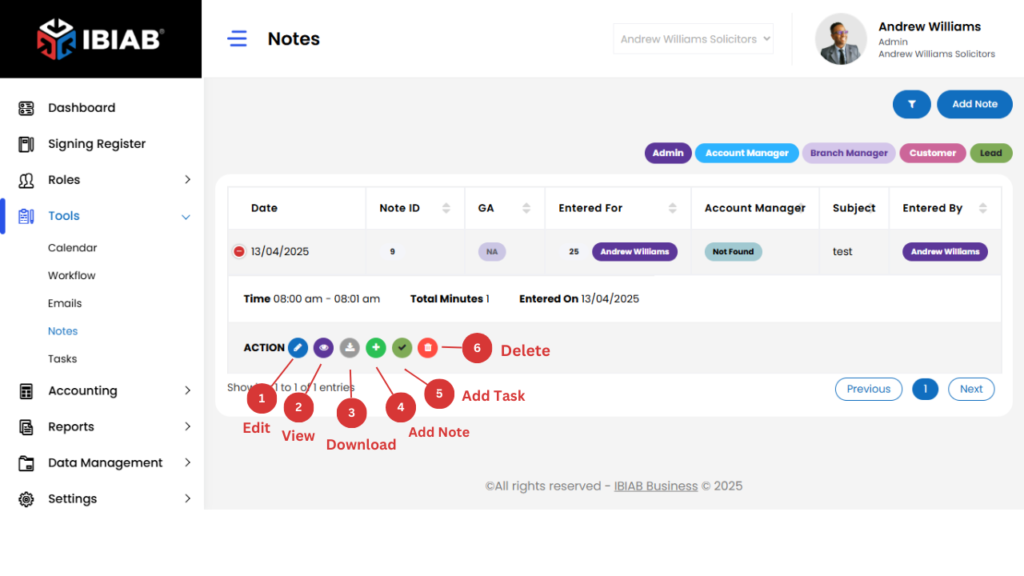
- Users can see a list of existing notes with details such as start time, end time, subject, and description.
- Clicking on the plus (+) button next to a note will expand the available action buttons.
Available Actions:
- Edit – Modify the note details.
- View – Open and read the full note.
- Download – Save the note as a file.
- Add Note– Link a Note entry to the note if necessary.
- Add Task – Create a related task based on the note.
- Delete – Remove the note permanently.
📌 Tip: Use the Edit option to update information instead of deleting a note to maintain records
Add Notes – Add internal notes related to the user you prefer.
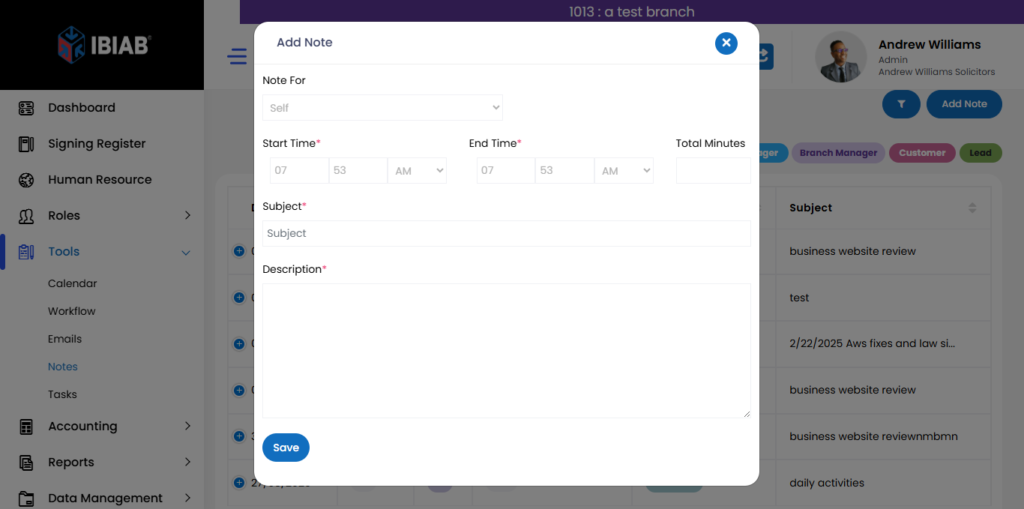
The Add Notes form allows users to add important details related to a specific role or task.
Fields in the Notes Section:
- Start Time* – Select the start time for the note entry.
- End Time* – Select the end time (must be greater than the start time).
- Total Minutes – Automatically calculates the duration based on the start and end times.
- Subject* – Enter a title or brief subject for the note.
- Description* – Provide detailed information about the note.
Important Rule:
⚠️ End Time must be greater than Start Time to ensure valid time tracking.
📌 Tip: Ensure all *required fields (marked with an asterisk ) are completed before saving the note.