
7.4 Supplier
When you click on Suppliers under the Accounting menu, a list of suppliers appears, allowing you to manage all suppliers in the system. You can also click “Manage Types” and “Add Supplier” to organize and add new suppliers.
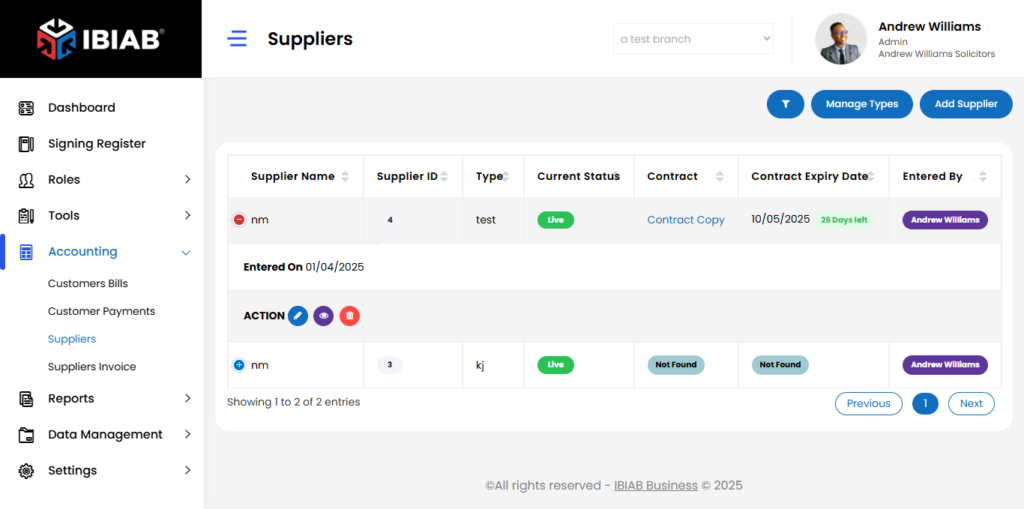
The Suppliers page displays a list of suppliers in a table format with the following fields:
- Supplier Name
- Supplier ID
- Type
- Current Status
- Contract
- Contract Expiry Date
- Entered By
- Entered On
When you click on the + button next to a supplier’s name, more action buttons appear to View, Edit, or Delete the specific supplier.
Add Supplier
When you click on Add Supplier, a popup form will appear with the following fields:
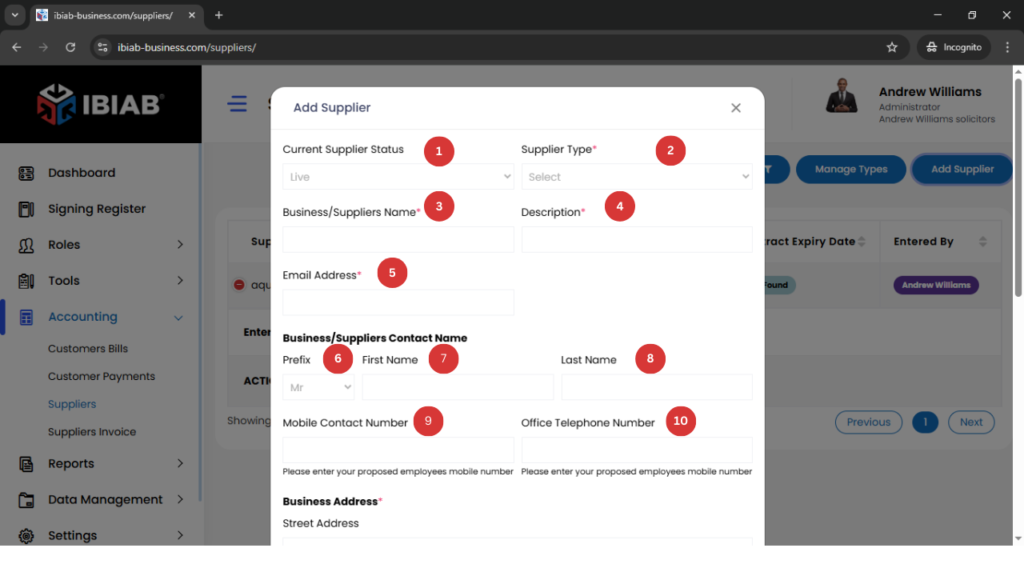
- Current Supplier Status
- Supplier Type* (Required)
- Business/Supplier Name* (Required)
- Description
- Email Address* (Required)
Business/Supplier Contact Name - Prefix
- First Name
- Last Name
- Mobile Contact Number
- Office Telephone Number
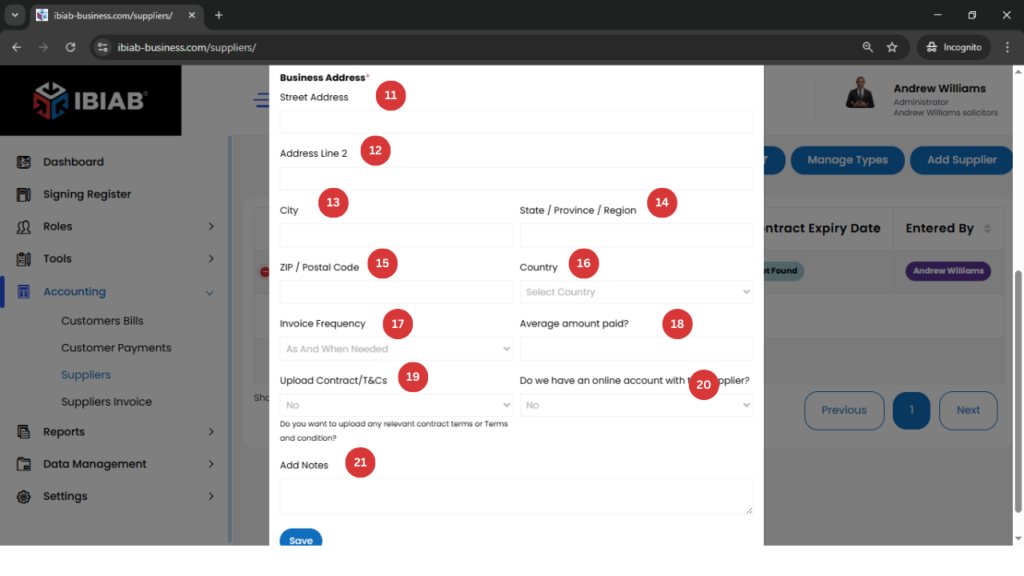
Business Address* (Required) - Street Address
- Address Line 2
- City
- State / Province / Region
- ZIP / Postal Code
- Country
- Invoice Frequency
- Average Amount Paid?
- Upload Contract/T&Cs
If yes, fields for Upload Copy of Terms and Conditions* and Contract Expiry Date will appear. - Do we have an online account with this supplier?
If yes, fields for URL to log into the online account*,Login Email*, Username*, Password* will appear) - Add Notes