
8. Report
The Reports Module is essential for your system, providing valuable insights into various business activities. It includes different reports to help track financial transactions, tasks, and compliance.
Available Reports:
📊 Accounting Reports:
- Customers Bills Report – Tracks customer bills, including outstanding and paid invoices.
- Disbursement Pay Report – Details payments made for business disbursements.
- Customer Payments Report – Summarizes payments received from customers.
- Suppliers Invoice Report – Manages supplier invoices and payment details.
🛂 Immigration Reports:
- Activity Submission Report – Monitors the progress of immigration matters.
- BF Date Report – Tracks bring-forward dates for follow-ups.
- File Review Report – Records file reviews and compliance checks.
- SMS Report – Logs SMS communication related to immigration cases.
- Visa Expiry Report – Alerts on upcoming visa expirations.
📌 Other Reports:
- Notes Report – Displays a record of notes added across the system.
- Tasks Report – Lists all assigned tasks with statuses.
- Task Status Report – Tracks task progress and completion rates.
📌 Tip: Regularly reviewing these reports helps in better decision-making and business management.
📊 Accounting Reports:
8.1. Customers Bill Report
Tracks customer bills, including outstanding and paid invoices.
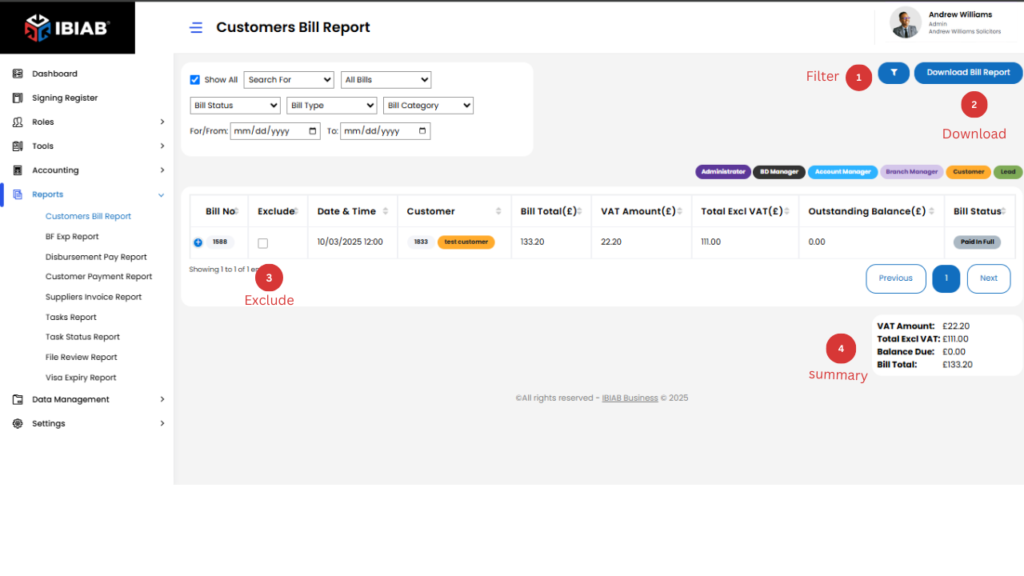
The Customers Bill Report provides a detailed overview of customer bills, including outstanding and paid invoices.
Columns Displayed:
- Bill No – Unique bill reference number.
- Exclude – A checkbox column; if selected, that row will be excluded from calculations.
- Date & Time – The date and time when the bill was generated.
- Customer – Name of the customer associated with the bill.
- Bill Total (£) – The total amount of the bill, including VAT.
- VAT Amount (£) – The VAT amount applied to the bill.
- Total Excl. VAT (£) – The bill amount before VAT is applied.
1.Summary Calculations (Displayed at the Bottom):
- VAT Amount: £ (Total of all VAT amounts)
- Total Excl. VAT: £ (Total of all amounts before VAT)
- Balance Due: £ (Total outstanding balance)
- Bill Total: £ (Grand total of all bills, including VAT)
📌 Tip: Use the Exclude column to filter out specific rows from the total calculations.
The Customers Bill Report allows you to filter results based on different criteria to generate the specific report you need.
2.Filtering Options:
- Show All Bills – Displays the complete list of bills.
- By Bill Status – Filter by status (e.g., Paid, Unpaid, Overdue).
- By Bill Type – Filter by bill type (e.g., Invoice, Quotation).
- By Bill Category – Filter by category (e.g., Business Activity, Disbursement).
- For/From (Date) – Select a start date for filtering.
- To (Date) – Select an end date for filtering.
Additional Features:
- Expand Details (+ Button) – Clicking the + button next to a bill will reveal more details about that specific bill.
- Download Report – Clicking the Download button will generate and download the report in PDF format for record-keeping or sharing.
📌 Tip: Use filters to quickly find the required billing data and generate accurate reports.
8.2. Disbursement Pay Report – Details payments made for business disbursements.
The Disbursement Pay Report provides a detailed record of payments made for business disbursements.
Filtering Options:
- Show All – View all disbursement payments.
- Disbursement – Filter by specific disbursements.
- Role – View payments based on user roles.
- For/From (Date) – Select a start date for the report.
- To (Date) – Select an end date to refine results.
- Bill Status – Filter by paid, pending, or overdue bills.
- Bill Type – View disbursements based on bill classification.
Additional Features:
- Expand Details (+ Button) – Click to view more details for a specific payment.
- Download Report – Generate and save the report as a PDF for record-keeping.
📌 Tip: Use filters to track expenses efficiently and ensure accurate financial reporting.
8.3. Customer Payment Report – Summarizes payments received from customers.
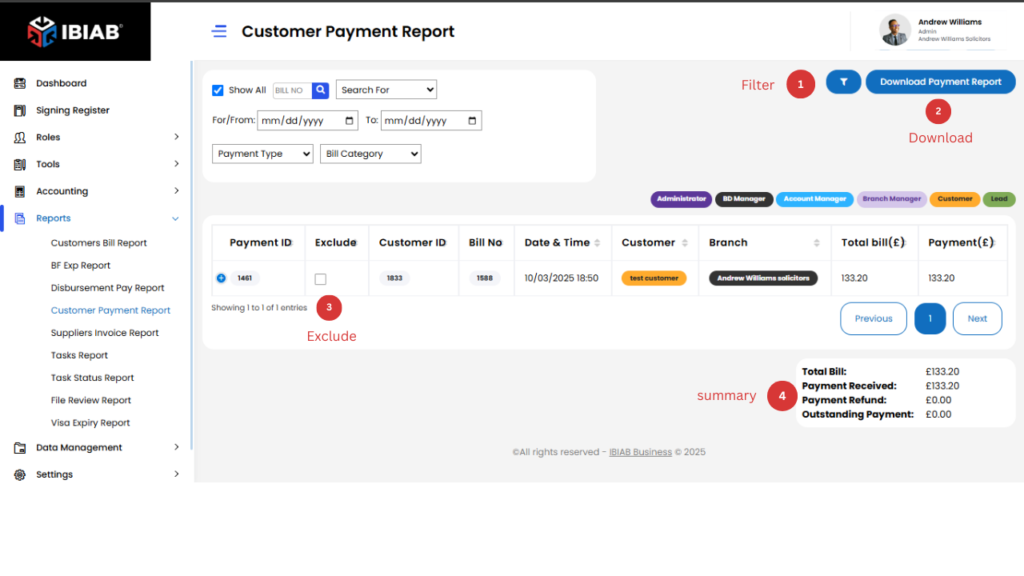
The Customer Payment Report provides a summary of payments received from customers, including payment details and bill status.
Displayed Fields:
- Payment ID
- Exclude (Checkbox to exclude specific rows)
- Customer ID
- Bill No
- Date & Time
- Customer
- Branch
- Total Bill (£)
- Payment (£)
- Bill Details Activity
- Payment Status
- Account Manager
Filtering Options:
- Show All – View all customer payments.
- Bill No – Search by specific bill numbers.
- Role – Filter payments based on assigned user roles.
- For/From (Date) – Select a start date to refine results.
- To (Date) – Select an end date.
- Payment Type – Filter by different payment methods.
- Bill Category – View payments by bill classification.
Additional Features:
- Expand Details (+ Button) – Click to view more details for a specific payment.
- Download Report – Save the report as a PDF for record-keeping.
📌 Tip: Use filters to analyze customer payment trends and track outstanding balances efficiently.
8.4 Suppliers Invoice Report – Manages supplier invoices and payment details.
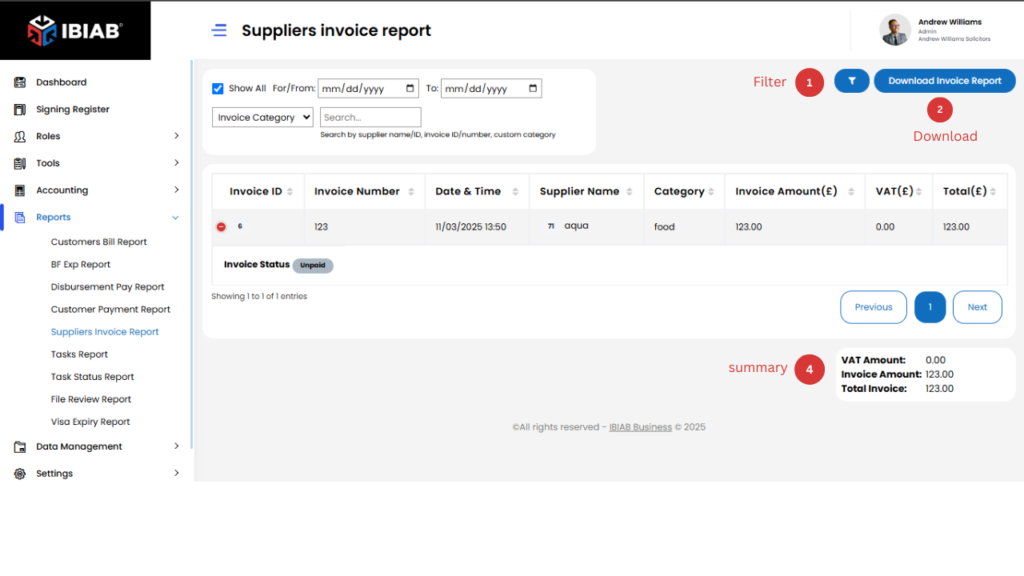
📋 Report Fields:
- Invoice ID – Unique identifier for each invoice.
- Invoice Number – Reference number of the invoice.
- Date & Time – When the invoice was issued.
- Supplier Name – The name of the supplier.
- Category – Type of expense associated with the invoice.
- Invoice Amount (£) – The total amount before VAT.
- VAT (£) – The VAT amount applied.
- Total (£) – Final invoice amount including VAT.
- Invoice Status – Status of the invoice (Paid/Pending/Overdue).
✅ Expand Details (+ Button) – View more details about a specific invoice.
📥 Download Report – Save the report as a PDF for record-keeping.
8.5 Activity Submission Report – Monitors the progress of Business Activities.
📋 Report Fields:
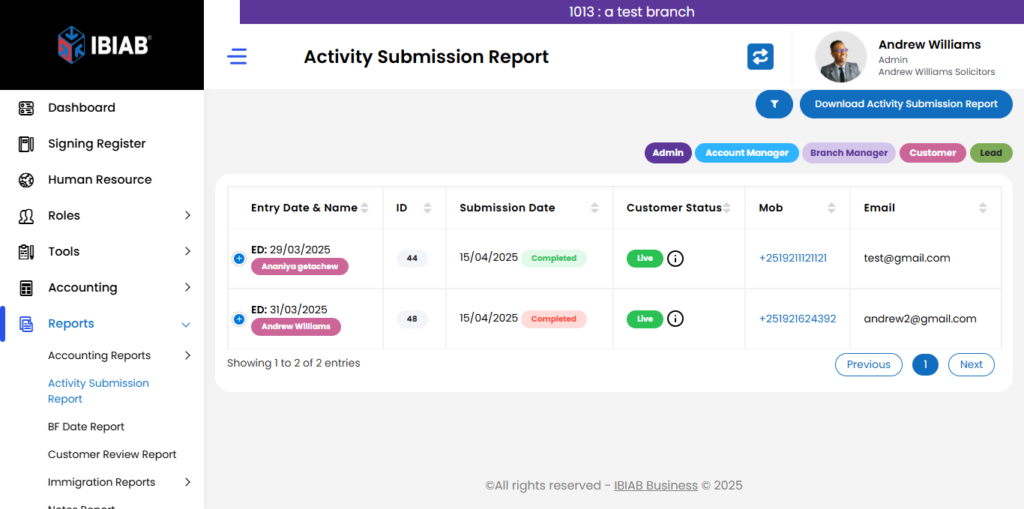
- Entry Date & Name – Date the matter was added and the client’s name.
- ID – Unique identifier for the case.
- Submission Date – When the case was submitted.
- File Status – Current status of the case (e.g., Pending, Approved, Rejected).
- Mob – Client’s mobile number.
- Email – Client’s email address.
- Account Manager – Assigned account manager.
- Business – Business linked to the case.
- Business Manager – Responsible business manager.
✅ Expand Details (+ Button) – View more information about a specific case.
📥 Download Report – Export the report as a PDF for record-keeping.
8.6.BF Exp Report – Monitors bring-forward expiry dates for important follow-ups.
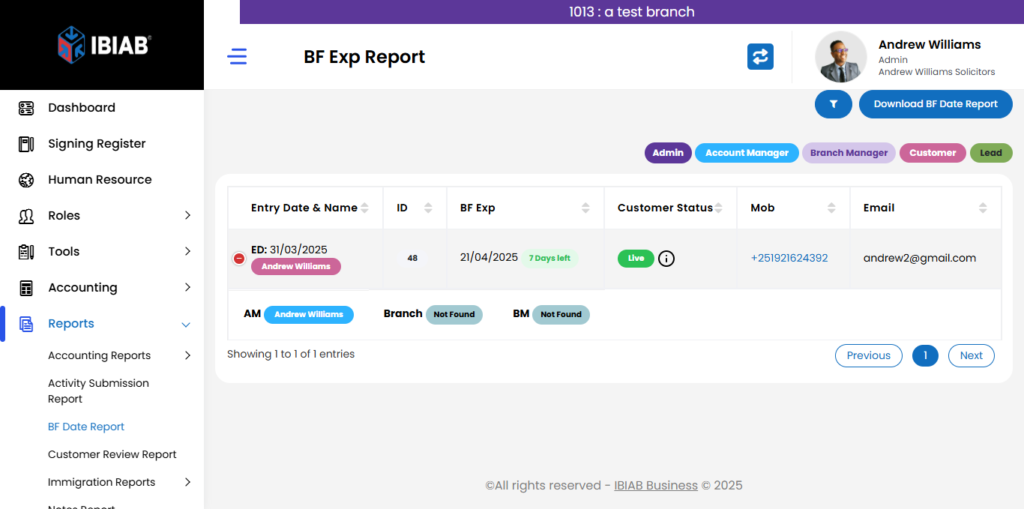
The BF Exp Report helps monitor bring-forward expiry dates for important follow-ups, ensuring timely actions.
Filtering Options:
- By Roles – Filter results based on user roles.
- Select Account Manager – View reports for a specific account manager.
- Search by Branch Manager – Filter reports by branch manager.
- Days Left – Filter records based on the number of days remaining before expiry.
Additional Features:
- Expand Details (+ Button) – Clicking the + button next to a row will display more information about that specific record.
- Download Report – Clicking the Download button will generate and save the report in PDF format for easy access and sharing.
📌 Tip: Use filters to focus on critical follow-ups and prevent missed deadlines
8.7 File Review Report – Tracks file review dates and statuses.
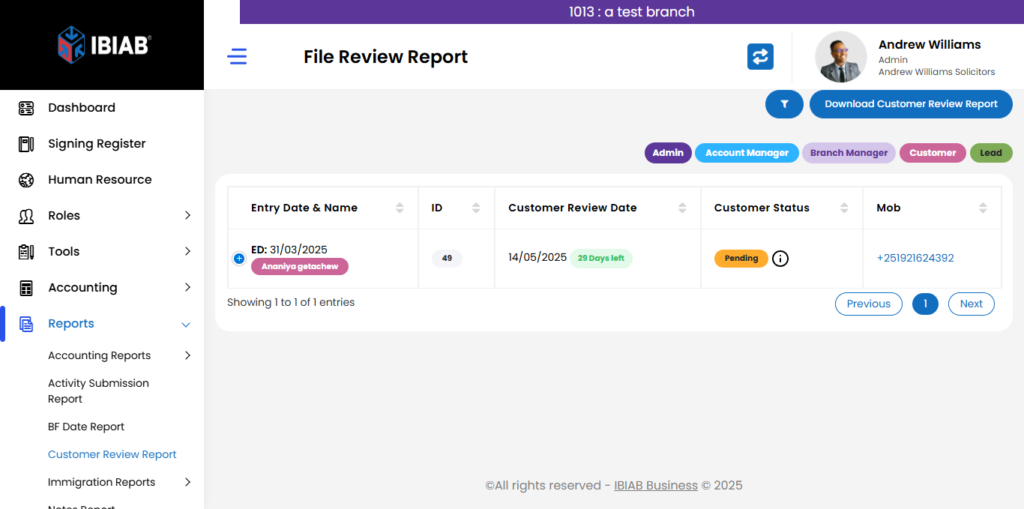
📋 Report Fields:
- Entry Date & Name – Date the file was added and the client’s name.
- ID – Unique identifier for the file.
- File Review Date – Scheduled date for the file review.
- File Status – Current status of the file (e.g., Pending, Completed, Requires Update).
- Mob – Client’s mobile number.
- Email – Client’s email address.
- Account Manager – Assigned account manager.
- Business – Associated business entity.
- Business Manager – Responsible business manager.
✅ Expand Details (+ Button) – View additional details about a specific file.
📥 Download Report – Export the report as a PDF for record-keeping.
Immigration Reports:
8.8 SMS Report – Tracks allocated SMS communications and their statuses.
📋 Report Fields:
- Due On – Scheduled date for the SMS to be sent.
- Allocated To – Person or department responsible for the SMS.
- Allocated For – Recipient of the SMS.
- AC Manager – Account manager overseeing the communication.
- Subject – Topic or purpose of the SMS.
- Priority Level – Urgency of the message (High, Medium, Low).
- Allocated By – Person who assigned the SMS.
- Allocated On – Date the SMS was assigned.
✅ Expand Details (+ Button) – View more details for a specific SMS.
📥 Download Report – Save the report as a PDF for record-keeping.
8.9 Visa Expiry Report – Tracks visa and passport expiry dates for clients.
📋 Report Fields:
- Entry Date & Name – Date of entry and client’s name.
- ID – Unique identifier for the client.
- Visa Exp – Visa expiration date.
- Passport Exp – Passport expiration date.
- Workflow Status – Progress of the case in the system.
- File Status – Current status of the client’s file.
- Mob – Client’s mobile number.
- Email – Client’s email address.
- Account Manager – Assigned account manager.
- Business – Associated business (if applicable).
- Business Manager – Manager overseeing the case.
✅ Expand Details (+ Button) – View more details for a specific record.
📥 Download Report – Save the report as a PDF for record-keeping.
Other Reports:
8.10 Notes Report – Tracks notes added across the system.
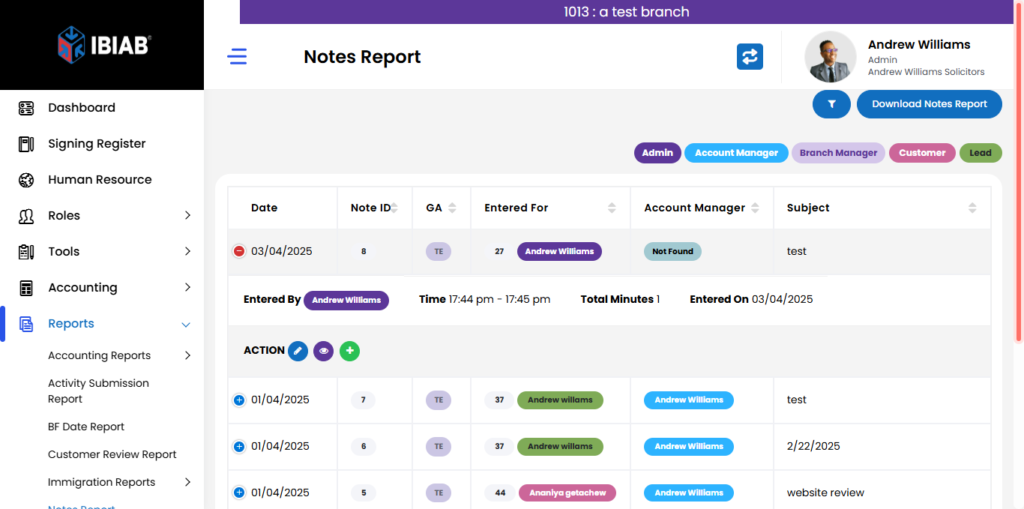
📋 Report Fields:
- Date – Date the note was created.
- Note ID – Unique identifier for the note.
- GM – General Manager (if applicable).
- Entered For – Person or entity the note is related to.
- AC Manager – Assigned account manager.
- Subject – Brief description of the note.
- Entered By – User who created the note.
- Time – Time the note was recorded.
- Total Minutes – Duration associated with the note (if applicable).
- Entered On – Date and time when the note was logged.
🔍 Filtering Options:
- Show All – View all notes.
- User ID – Filter notes by user.
- Note ID – Search for a specific note.
- Search by Subject – Find notes using keywords.
- For/From Date – Filter notes within a specific date range.
- Search By AM – Find notes linked to a particular account manager.
- Search For/By – Additional search criteria for better filtering.
✅ Expand Details (+ Button) – View more details for a specific note.
📥 Download Report – Save the report as a PDF for record-keeping.
8.11 Tasks Report – Tracks all tasks assigned within the system.
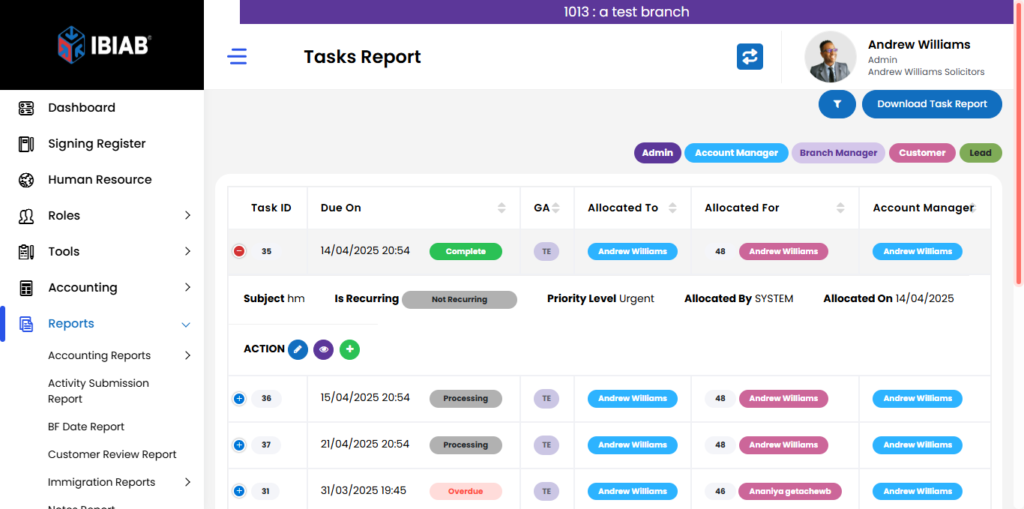
📋 Report Fields:
- Task ID – Unique identifier for the task.
- Due On – Task deadline.
- GM – General Manager (if applicable).
- Allocated To – Person responsible for completing the task.
- Allocated For – Entity or person the task is related to.
- AC Manager – Assigned account manager.
- Subject – Brief description of the task.
- Recurring – Indicates if the task repeats.
- Priority Level – Task urgency (High, Medium, Low).
- Allocated By – User who assigned the task.
- Allocated On – Date the task was assigned.
🔍 Filtering Options:
- Show All – View all tasks.
- User ID – Filter tasks by user.
- Task ID – Search for a specific task.
- Search by Subject – Find tasks using keywords.
- For/From Date – Filter tasks within a date range.
- Task Status – Filter by task completion status.
- Priority Level – View tasks by urgency.
- Search For – Find tasks assigned to specific users.
- Recurring Tasks – Show only repeating tasks.
✅ Expand Details (+ Button) – View additional details for a specific task.
📥 Download Report – Export the report as a PDF for record-keeping.
8.12 Task Status Report – Provides an overview of task statuses and their details.
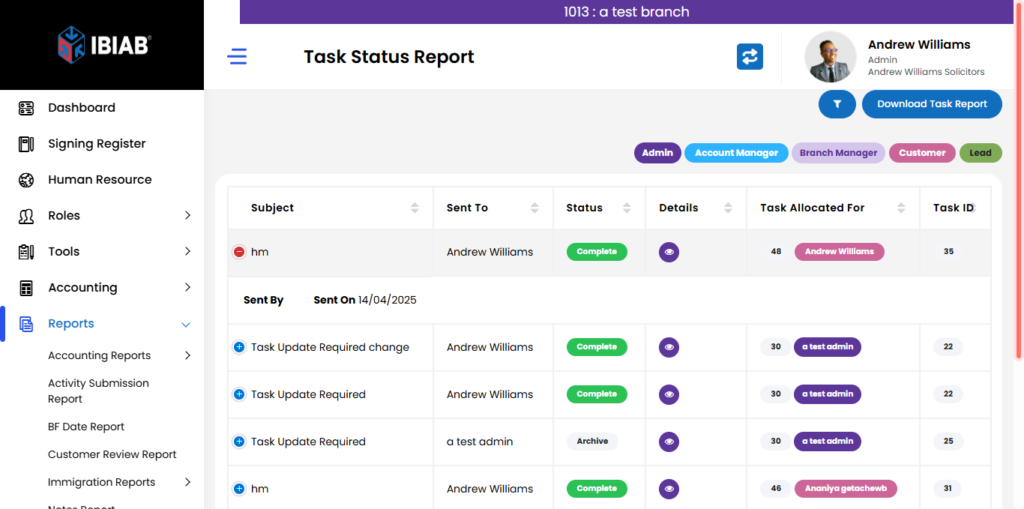
📋 Report Fields:
- Subject – Brief description of the task.
- Sent To – Recipient of the task notification.
- Status – Current status of the task (e.g., Pending, Completed).
- Details – Additional information about the task.
- Task Allocated For – The individual or team the task is assigned to.
- Task ID – Unique identifier for the task.
- Sent By – Person who sent the task.
- Sent On – Date and time the task was sent.
🔍 Filtering Options:
- Show All – View all tasks.
- Task ID – Search for a specific task.
- For/From Date – Filter tasks within a date range.
- Task Status – Filter tasks by their current status.
✅ Expand Details (+ Button) – View more details for a specific task.