
7.2 Customers Invoice
View Invoice– See all Invoice
When you click on ” Invoice” under accounting menu a list of Invoices will appear with ADD Invoice button on the top.
Invoice Details Display
list of Invoices includes a table that shows the full details of the Invoice, such as:
- Invoice Number
- Date & Time
- Invoice Type (Invoice/Quotation)
- Subtotal
- Discount (if any)
- VAT (20%)
- Total Invoice Amount
- Payment Terms
Invoice Management Action Buttons
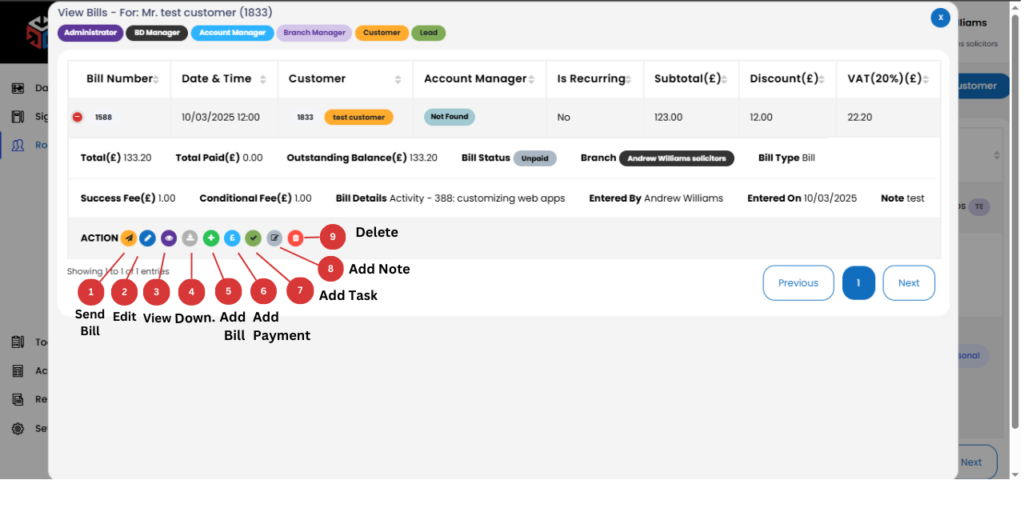
you can take the following actions:
- Send Invoice – Send the Invoice directly to the customer via email.
- Edit Invoice– Modify any details of the bill, such as amount, discount, or payment terms.
- View Invoice– Open a detailed view of the Invoice for review.
- Download – Export and download the Invoice as a PDF or other formats.
- Add Payment – Record a payment for the Invoice.
- Add Task – Assign a task related to the Invoice (e.g., follow-up for payment).
- Add Note – Attach internal notes regarding the Invoice.
- Delete – Permanently remove the Invoice from the system.
📌 Tip: Before sending or modifying a Invoice, always verify the details to ensure accuracy in transactions.
Add Invoice– Create a new bill for the customer.
Invoice Entry Fields
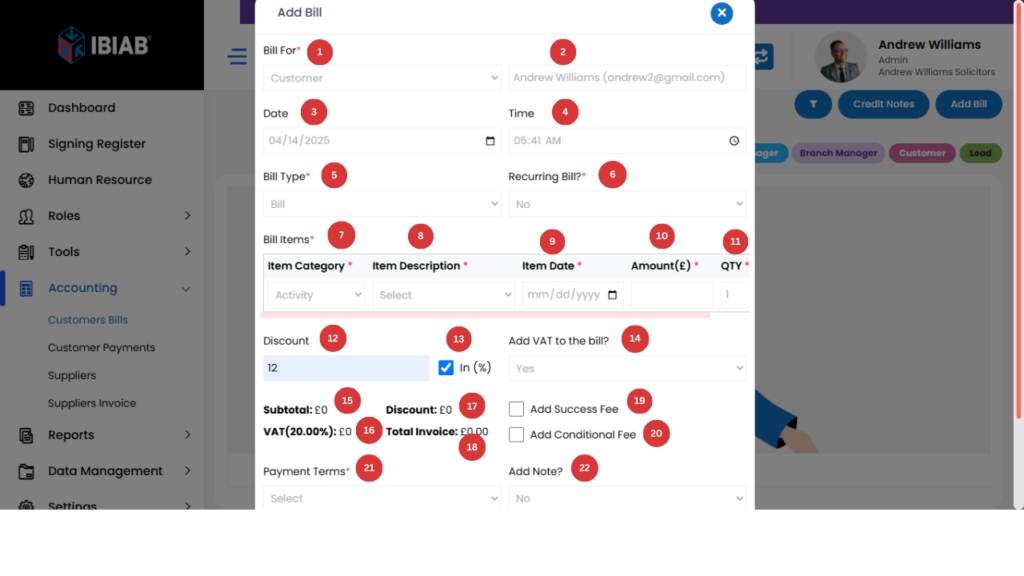
Once the default business activity is set, you can proceed to add a Invoice by filling out the following fields:
- Invoice for*- select customer or lead
- select user
- Time – Enter the time of the Invoice.
- Date– Enter the Date of Invoice.
- Invoice Type* – Choose between:
- Invoice (for actual transactions)
- Quotation (for price estimates)
- Recurring Invoice?* – Specify if this Invoice should repeat at regular intervals automatically.
- Item Category* – Select one of the two Invoice categories:
- Business Activity (related to provided services)
- Business Disbursement (for additional expenses related to the business)
- Item Description* – Enter a brief description of the product or service being billed.
- Item Date* – Select the date associated with the Invoice item or service.
- Amount(£)* – Enter the total cost for the item or service in GBP.
- QTY* – Specify the quantity of items or units being Invoice.
- Discount – If applicable, enter a discount amount.
- In (%) Checkbox – If checked, discount is applied as a percentage instead of a fixed amount.
- Add VAT? – If VAT applies, check this option. The system will calculate 20% VAT.
Invoice Breakdown - Subtotal: £ (Displays the total amount before discount & VAT)
- VAT (20%): £ (Automatically calculates the VAT amount)
- Discount: £ (Shows the applied discount amount)
- Total Invoice: £ (Final amount after discounts & VAT)
- Add Success Fee? – If checked, additional fields appear:
- Success Fee* – Enter the extra service charge.
- Success Note* – Provide a note regarding the success fee.
- Add Conditional Fee? – If checked, additional fields appear:
- Conditional Fee* – Specify an extra charge based on conditions.
- Condition* – Define the terms for applying the fee.
- Payment Terms* – Specify the payment conditions.
- If “Add Note?” is selected, the following fields appear:
- Note Type – Choose the type of note.
- Customer Note* – Add any relevant information for the customer.
📌 Tip: Always review the invoice before finalizing to ensure the correct calculations and details.