2.8.Business Matter Settings
The Business Matter Settings module allows you to manage business-related activities, whether products or services, by categorizing them into different levels. This helps streamline your organization’s workflow and structure business operations efficiently.
Navigating Business Matter Settings
When you click on Business Activity Settings in the side menu, a page will open displaying a list of business activities in a structured table format.
The page consists of four main tabs, each representing a different level of business categorization:
- Global Business Activity (Top-Level Category)
- This represents the highest-level business activity.
- To add a new Global Business Activity, enter the activity name in the provided field and click Add.
- The table below will display the added activities, showing:
- Global Business Activity Name
- Action Buttons (Edit, Set Default, Delete)
- Global Business Activity Name
- This represents the highest-level business activity.
- Business Activity Category (Second-Level Category)
- Each Business Activity Category is linked to a Global Business Activity.
- Select a Global Business Activity from the dropdown, enter the Business Activity Category Name, and click Add to create a new category.
- The table will display all created Business Activity Categories, allowing you to manage them.
- Each Business Activity Category is linked to a Global Business Activity.
- Business Activity Type (Third-Level Category – Live & Enforced)
- Each Business Activity Type is linked to both a Global Business Activity and a Business Activity Category.
- Select the Global Business Activity and Business Activity Category from the dropdowns, enter the Business Activity Type Name, and click Add to create a new type.
- This links all three levels together into a structured hierarchy.
- Each Business Activity Type is linked to both a Global Business Activity and a Business Activity Category.
- Activity Type Description (Detailed Description for Each Activity Type)
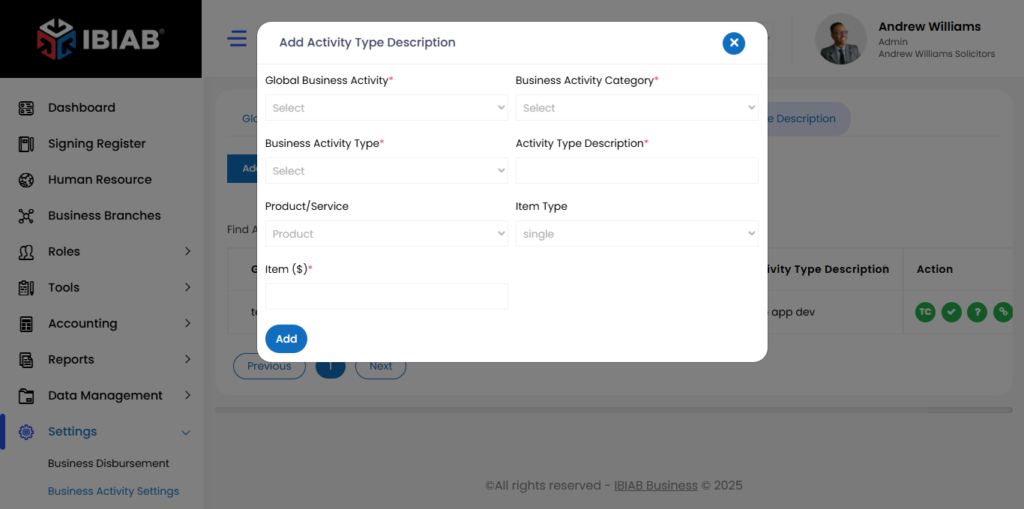
This section allows you to add descriptions for each Business Activity Type. click on activity type description button and a form will appear to add a new Activity Type
This form allows you to define and manage different levels of business activities, products, or services.
Fields:
- Global Business Activity* – Top-level category of the business activity.
- Business Activity Category* – The second-level classification.
- Business Activity Type* – Specific type under the selected category.
- Activity Type Description* – A brief description of the selected activity.
- Product/Service – Define whether the entry is a product or a service.
- Item Type – Select either:
- Single – A standalone item.
- Variant – If selected, additional fields appear:
- Item Attribute* – Define the unique attribute of the variant.
- Item Description* – Describe the variant.
- Item (£) / Item ($)* – Set the price in the preferred currency.
- Item Attribute* – Define the unique attribute of the variant.
- Single – A standalone item.
After filling in the details, save to add the new business activity!
Product Attributes
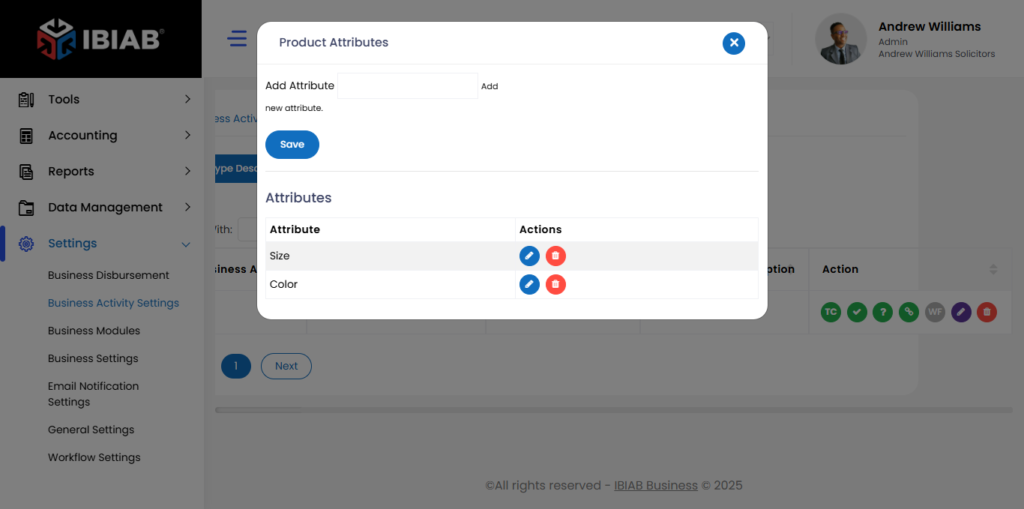
This section allows you to define specific attributes for your products.
Steps to Add an Attribute:
- Enter the Attribute Name in the provided field.
- Click the Save button to add the attribute.
Once saved, the attribute can be used for product variants in your inventory or service listings.
Managing Business Matter Settings
Once your business activities are set up, you can use the Action Buttons to further configure each entry:
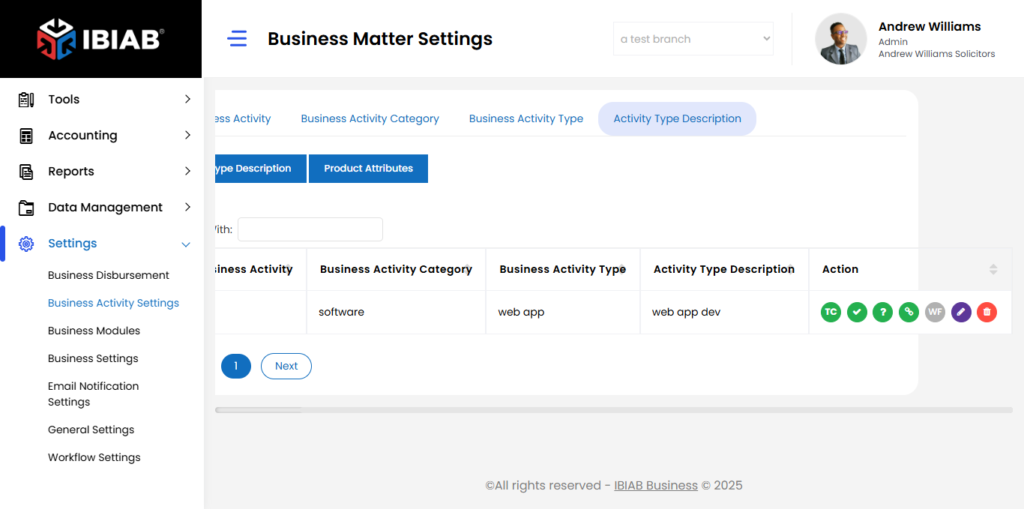
- Attach Customer Business Cover Letter – Link a cover letter to the selected business matter.
- Attach Terms and Conditions File – Upload terms and conditions related to the matter.
- Attach Document Checklist – Associate a document checklist with the business activity.
- Attach Questionnaire Form – Add a questionnaire for data collection.
- Add Link to Custom Web App – Connect the business matter to an external web application.
- Workflow Setting – Define workflow steps for the business matter.
- edit Settings – Edit configurations.
- Delete – Remove the business matter from the system.
This structured approach allows businesses to effectively categorize, manage, and automate their workflows within the IBIAB Business Management System.