
8.1. Customers Bill Report
Tracks customer bills, including outstanding and paid invoices.
The Customers Bill Report provides a detailed overview of customer bills, including outstanding and paid invoices.
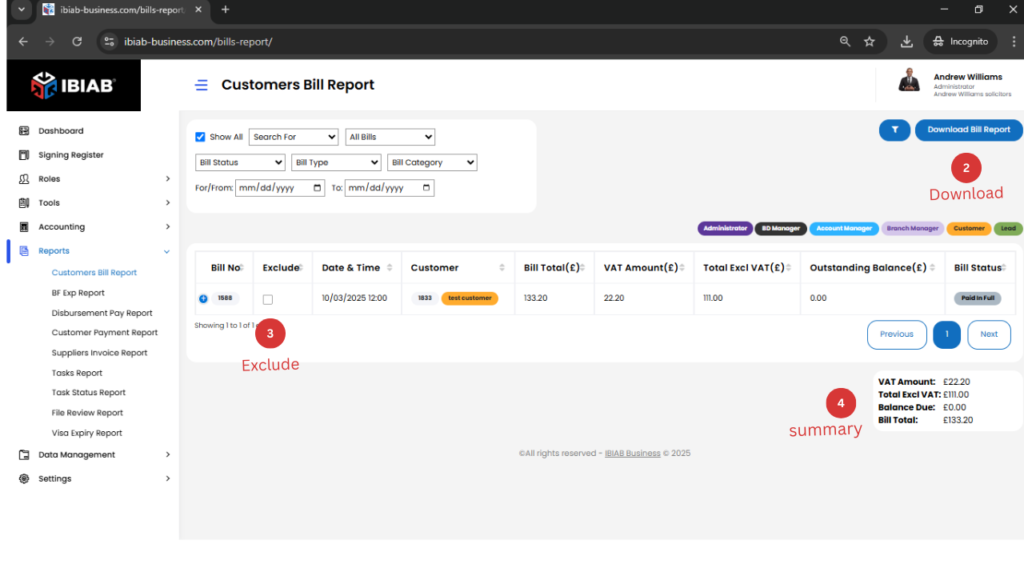
Columns Displayed:
- Bill No – Unique bill reference number.
- Exclude – A checkbox column; if selected, that row will be excluded from calculations.
- Date & Time – The date and time when the bill was generated.
- Customer – Name of the customer associated with the bill.
- Bill Total (£) – The total amount of the bill, including VAT.
- VAT Amount (£) – The VAT amount applied to the bill.
- Total Excl. VAT (£) – The bill amount before VAT is applied.
1.Summary Calculations (Displayed at the Bottom):
- VAT Amount: £ (Total of all VAT amounts)
- Total Excl. VAT: £ (Total of all amounts before VAT)
- Balance Due: £ (Total outstanding balance)
- Bill Total: £ (Grand total of all bills, including VAT)
📌 Tip: Use the Exclude column to filter out specific rows from the total calculations.
The Customers Bill Report allows you to filter results based on different criteria to generate the specific report you need.
2.Filtering Options:
- Show All Bills – Displays the complete list of bills.
- By Bill Status – Filter by status (e.g., Paid, Unpaid, Overdue).
- By Bill Type – Filter by bill type (e.g., Invoice, Quotation).
- By Bill Category – Filter by category (e.g., Business Activity, Disbursement).
- For/From (Date) – Select a start date for filtering.
- To (Date) – Select an end date for filtering.
Additional Features:
- Expand Details (+ Button) – Clicking the + button next to a bill will reveal more details about that specific bill.
- Download Report – Clicking the Download button will generate and download the report in PDF format for record-keeping or sharing.
📌 Tip: Use filters to quickly find the required billing data and generate accurate reports.