
7.5 supplier invoice
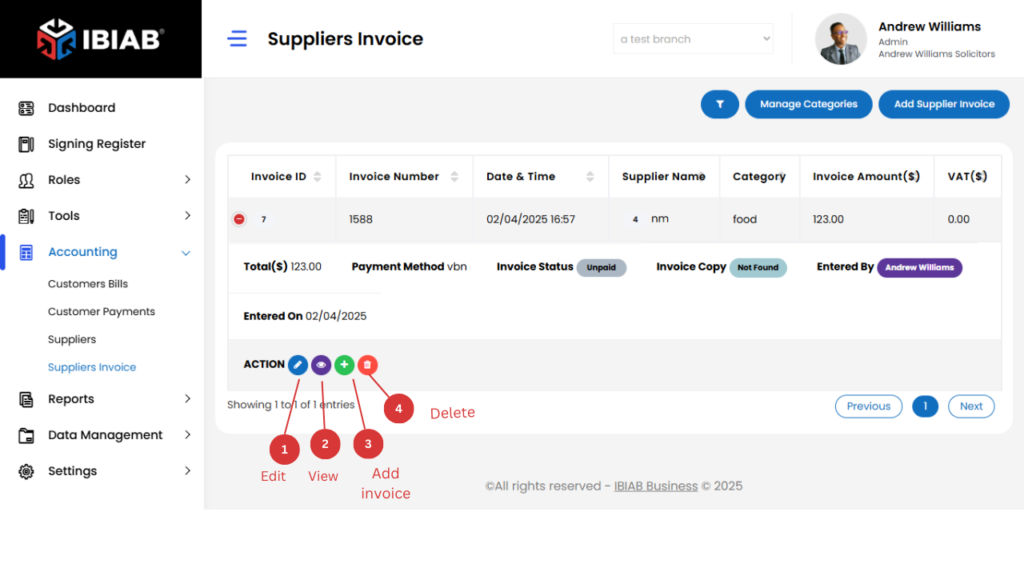
When you click on Supplier Invoice, a list of supplier invoices will appear in a table format. This section allows you to manage all supplier invoices, and it includes buttons for: Add Invoice and Invoice Categories
when you click on the + button beside the name action buttons will be visible to
1.Edit – edit that specific supplier invoice
2.View – view that specific supplier invoice
3.Add invoice – add more related invoice
4.Delete – delete that specific supplier invoice
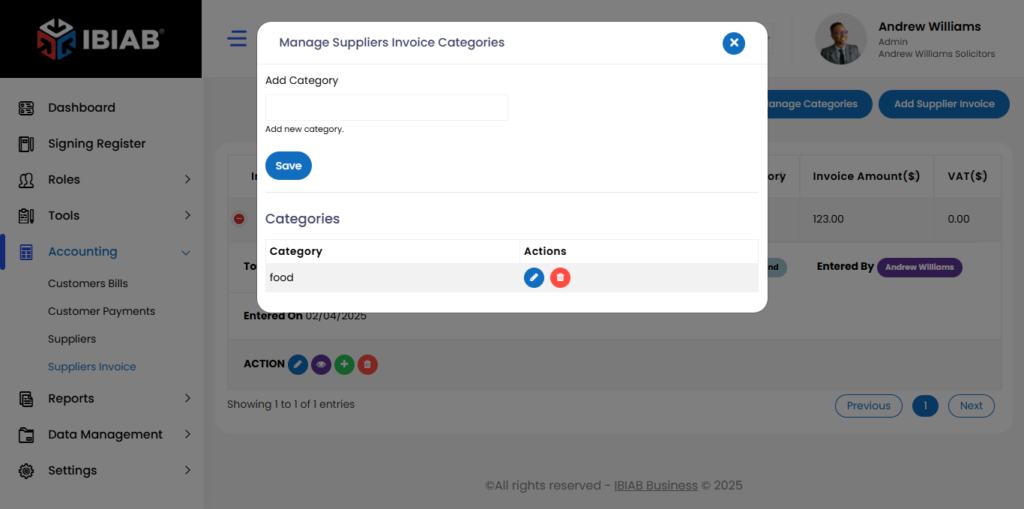
Clicking on Invoice Categories will open a popup form where you can add new invoice categories. The form includes the Category Name field which is Required
Add Invoice
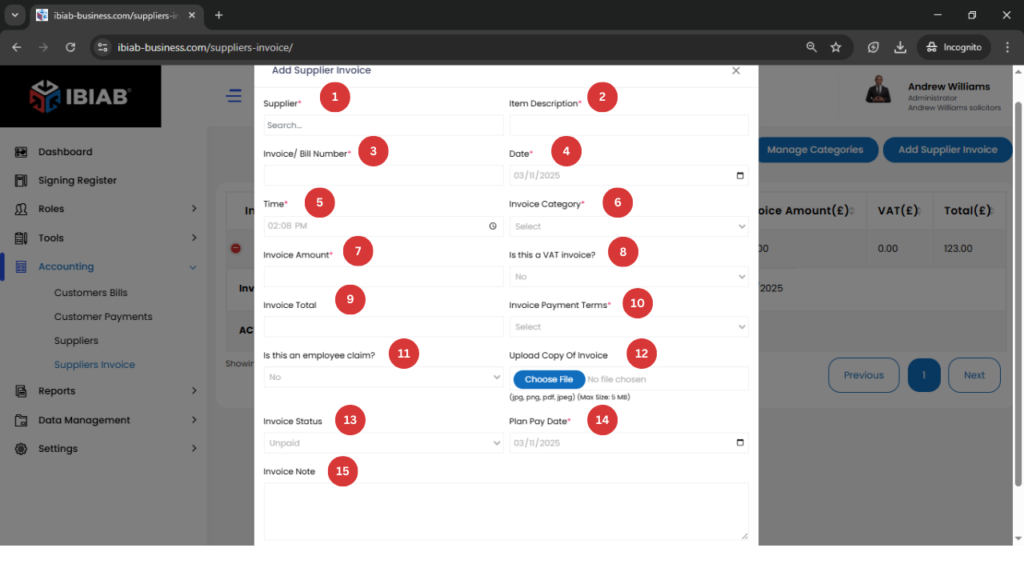
Clicking on Add Invoice will open a popup window with a form to add a new supplier invoice. The form includes the following fields:
- Supplier* – Select the supplier from the list.
- Item Description* – Enter details of the invoiced item/service.
- Invoice/Bill Number* – Provide the invoice or bill reference number.
- Date* – Select the invoice date.
- Time* – Enter the time of invoice issuance.
- Invoice Category* – Choose the category for the invoice.
- Invoice Amount* – Enter the total invoice amount before VAT (if applicable).
- Is this a VAT Invoice? – If Yes, additional fields will appear:
- VAT Calculations* – Choose how VAT is calculated.
- VAT Amount* – Enter the applicable VAT amount.
- VAT Calculations* – Choose how VAT is calculated.
- Invoice Total – Displays the total amount after VAT.
- Invoice Payment Terms* – Define the payment terms (e.g., Net 30, Due on Receipt).
- Is this an Employee Claim? – If Yes, additional fields will appear:
- Get Employee Name* – Enter the employee’s name.
- Get Employee Staff Number* – Provide the staff ID.
- Why are they making this claim?* – Describe the reason for the claim.
- Get Employee Name* – Enter the employee’s name.
- Upload Copy of Invoice – Attach a scanned or digital copy of the invoice.
- Invoice Status – Select the status (e.g., Pending, Paid, Overdue).
- Planned Pay Date* – Choose the expected payment date.
- Invoice Note – Add any relevant notes regarding the invoice.
📌 Tip: Ensure all required fields (marked with an asterisk *) are filled before submitting the invoice.